How to Change Bio on Instagram (Step-by-Step Guide 2026)
To change bio on Instagram, open your profile, tap Edit profile, tap the Bio field, type your new bio (up to 150 characters), then tap Done (on iPhone/Android) or Submit (on the web) to save it. That is the whole process — the steps below show exactly where each button is on the app and on desktop, what to do when your bio will not save, and how to write a bio that actually gets followers.

Where Is the Bio Field on Instagram?
Your bio sits right under your username and profile photo, above your posts grid. You cannot edit it from the feed or from a post — you must open your own profile first. On the app, tap your profile photo at the bottom right, then tap Edit profile. The Bio field is near the top of that screen, just below Name and Pronouns. On the web, go to instagram.com, open your profile, and click Edit profile — the Bio box is in the same place.
A quick check before you start: make sure you are signed in to the right account. If you manage more than one profile, the bio you edit belongs to whichever account is currently active, so switch accounts first if needed.
How to Change Bio on Instagram App (Step by Step)
Follow these steps on iPhone or Android — the screens look almost identical on both:
- Step 1: Open the Instagram app and tap your profile photo in the bottom-right corner.
- Step 2: Tap Edit profile under your username.
- Step 3: Tap the Bio field and delete the old text if you want a fresh start.
- Step 4: Type your new bio. Keep it under 150 characters, including spaces and emojis.
- Step 5: Add line breaks with the return key if you want your bio stacked on separate lines.
- Step 6: Tap Done (iPhone, top right) or the tick/checkmark (Android, top right).
- Step 7: Go back to your profile and check that the new bio shows under your name.
If the Done button looks greyed out, nothing has actually changed yet — type or delete at least one character first. Your new bio appears instantly; there is no waiting period and no approval step.
📋 Quick check: Profile photo → Edit profile → Bio field → type → Done. If you remember only one path, remember this one — it works on every version of the Instagram app.
How to Change Bio on Instagram on Desktop (Web)
Prefer a keyboard? Changing your bio on a computer is just as simple:
- Step 1: Go to instagram.com in your browser and sign in.
- Step 2: Click your profile photo (top right) and choose Profile.
- Step 3: Click Edit profile.
- Step 4: Click inside the Bio box and type your new bio.
- Step 5: Click Submit at the bottom of the page to save.
- Step 6: Reload your profile page to confirm the new bio is live.
Desktop editing is handy for longer bios because you can paste text from a notes app, check the character count, and fix typos on a full keyboard before you hit Submit.
How to Save Instagram Bio Changes
Saving is the step most people miss. Typing a new bio does nothing until you confirm it. On the app, tap Done or the tick icon — do not just swipe back or close the app, or your changes may be lost. On the web, click Submit and wait for the page to confirm before closing the tab.
After saving, open your profile from the feed (not from the edit screen) to verify the change. If the old bio is still showing, pull down to refresh — cached profile pages sometimes show the previous version for a few seconds.

Bio Not Saving? Troubleshooting Fixes
If your bio keeps reverting to the old text, work through these fixes in order — most cases are solved by the first two:
- Check the 150-character limit. Instagram silently rejects bios over 150 characters, including emojis and spaces. Shorten it and try again.
- Confirm you tapped Done or Submit. Leaving the edit screen without confirming discards the change.
- Check your connection. On weak Wi-Fi or mobile data, the save request can fail without an error. Switch networks and retry.
- Update the app. An outdated Instagram version can glitch on the edit screen — update from your app store, then retry.
- Remove banned links or words. A link Instagram flags, or text that trips its filters, can block the save. Remove the link, save the plain bio, then add the link back separately.
- Force-close and retry. Close Instagram completely, reopen it, and repeat the steps once. If it still fails, wait an hour — temporary account limits do lift.
For business and creator accounts, the same steps apply. If you use a link-in-bio tool, remember that your bio text and your bio link are separate fields — changing one does not change the other.
Instagram Bio Tips That Actually Work
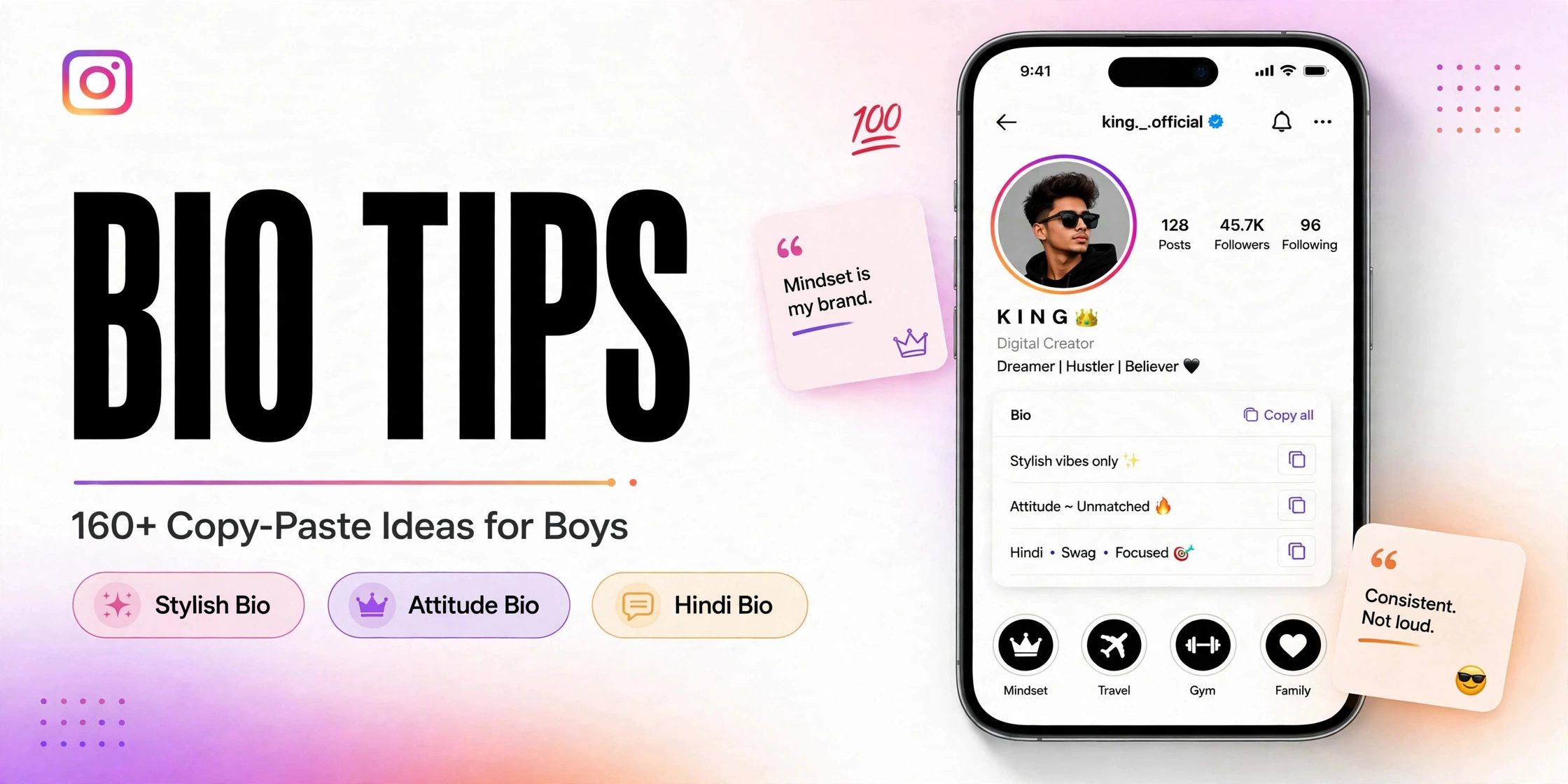
A good bio answers three questions in seconds: who you are, what you do, and why someone should follow. Use these tips to make those 150 characters work harder:
- Lead with the benefit. “Daily home workouts, no gym needed” beats a vague “fitness lover”.
- Use 1–3 emojis as bullet markers. They break up lines and guide the eye — more than that looks cluttered.
- Add one call to action. “DM for collabs” or “New video every Friday” tells visitors what to do next.
- Keep your niche keyword early. The first words are the most visible, so put what you are known for first.
- Update it with seasons and launches. A bio that mentions your current project always beats a bio from two years ago.
- Match it to your highlights. If your bio promises travel, your highlights should show travel — visitors check.
Example Bio Lines You Can Copy
Stuck for words? Copy any pair below and paste it into the Bio field using the steps above:
✨ Dreamer. Doer. Daily content.
📸 Capturing moments, one post at a time
🌱 Growing slowly, learning daily
💡 Ideas, coffee and good vibes
✈️ Wanderer with a camera
🎵 Music lover | New playlist weekly
📚 Reader, writer, daydreamer
💪 Small steps, big goals
Tap 📋 Copy on any pair above, then paste it straight into your Instagram Bio field.

💡 Need ready-made lines? Browse our insta bios for copy-paste collections, bios for girls, and couple bios — or start from our insta bio ideas homepage and pick a collection that fits your style.

Frequently Asked Questions
💡 Pro tip: Write your new bio in your notes app first, count to 150 characters, then paste it into Instagram. You avoid the save-reject loop and you always have a backup copy.
Conclusion
Changing your bio on Instagram takes less than a minute once you know the path: profile, Edit profile, Bio field, type, Done or Submit. The trick is not the steps — it is saving properly and writing a bio that tells visitors who you are in 150 characters or less.
Update your bio today using the steps above, then keep refining it as your content grows. For fresh copy-paste ideas every week, keep visiting copyinstabio.com.